
The Complete IT Admin Guide to Fixing Slow DNS Lookup

Your internet feels slow. But your connection is fine. The real problem is often DNS. Old server addresses and full caches add seconds to every page load. You can fix this in minutes. Just flush your cache or switch to a faster public DNS resolver, like Cloudflare (1.1.1.1) or Google (8.8.8.8).
Small background issues like this often get ignored. But they add up fast. A single DNS bottleneck can make even the best software feel broken, especially during a big rollout or deployment.
This guide shows you how to measure DNS latency. Then it shows you how to fix it, step by step.
Where the Delay Usually Comes From
It’s rarely one single cause. Usually, it’s two or three smaller things piling up until someone notices.
Endpoint Settings That Are Just Off
Sometimes the DNS servers are listed in the wrong order. Sometimes one of them technically exists in the config but hasn’t answered a query in months. VPN clients and security software love to quietly override DNS settings too, and half the time nobody on the team even realizes it happened.
Windows will wait a few hundred milliseconds on a dead DNS server before giving up and trying the next one. Doesn’t sound like much by itself. But that’s per lookup, and a normal workday involves way more DNS lookups than people realize, so it stacks up fast.
The Resolver Itself Might Be The Problem
Maybe your internal DNS server has more load than it can comfortably handle. Maybe nobody ever configured caching properly. Or the TTL values are set so low that it keeps going upstream for information it should already have sitting in memory.
This one’s worth taking seriously. Google’s research on this found that good DNS caching can knock lookup times down by 30 to 80 percent. That’s not a rounding error; that’s a real chunk of time.
Or Maybe It’s Just The Path
Sometimes the server’s fine and the route to it isn’t. Every extra hop costs time, and it’s the kind of thing you won’t catch unless you actually trace the route yourself.
How to Actually Measure This Instead of Guessing
Don’t test DNS speed from a server closet somewhere. Test it from where people are actually sitting and working, because that’s where the delay gets felt.
Rough numbers worth remembering: under 50 milliseconds, nobody notices anything. Somewhere between 50 and 100 is still fine. Past 150, people start to feel that something’s off, even if they can’t quite explain why.
Google’s also found that on a first visit to a site, DNS alone can eat up 20 to 30 percent of total load time. For something almost nobody thinks about day to day, that’s a lot.
Here’s a trick that works well: compare your DNS timing to your TCP and TLS setup times. If those two are fast and DNS is dragging way behind, that’s your answer right there. Just don’t trust one bad reading and call it done. A single slow lookup could be a fluke. It’s the repeated spikes over time that actually mean something.
How to fix slow DNS lookups
Almost every slow DNS situation comes down to one of three things. The machine’s asking the wrong server. It’s stuck waiting on one that won’t answer. Or it’s working off cached info that’s gone stale. Here’s how to fix each scenario, depending on how many machines you’re dealing with.
Method 1: Manual DNS Fix on A Single Computer
This is the manual route. Good for a single PC where you’ve got access to the network settings and don’t need anything fancy.
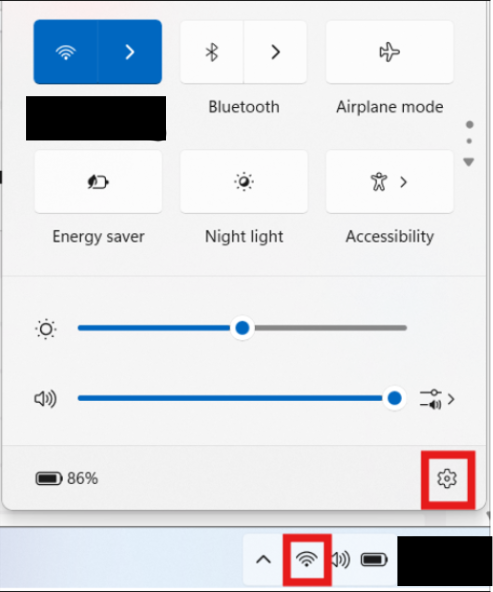
- Click the Wi-Fi or Ethernet icon in the taskbar, then the Settings gear next to it.
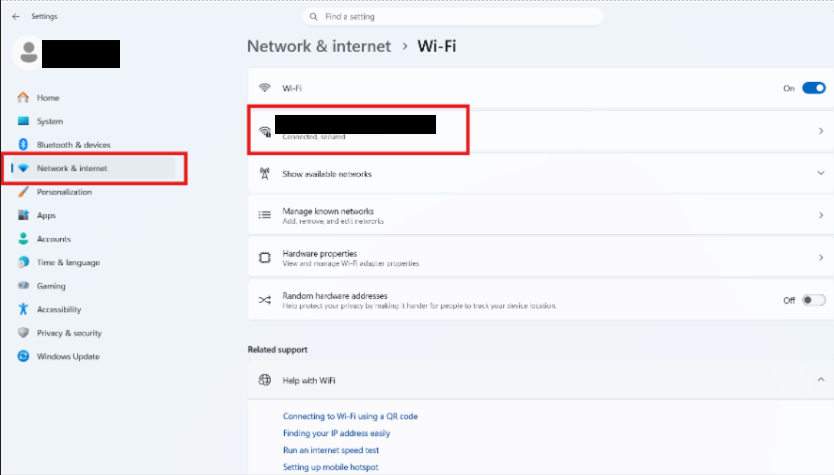
- Go to Network and Internet, then click Properties on whatever connection is active.
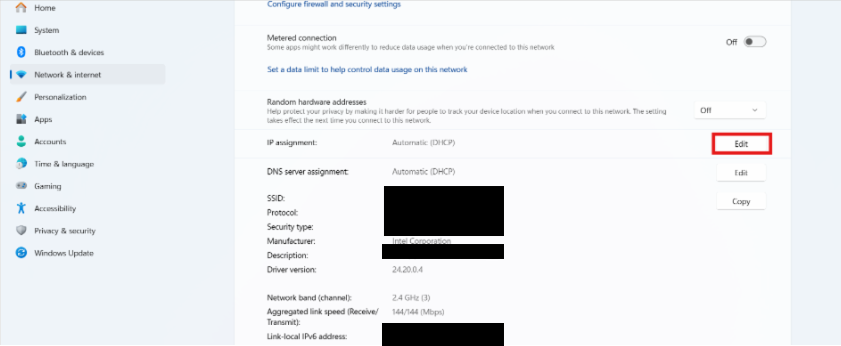
- Scroll down to IP Assignment. Click Edit.
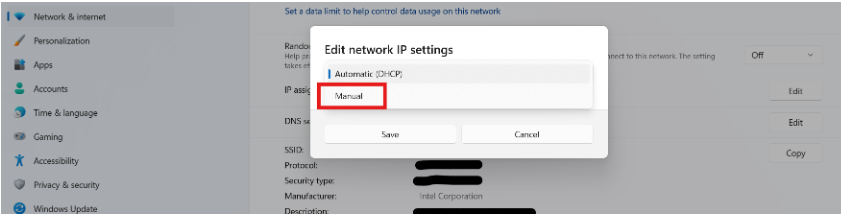
- Change it from Automatic to Manual.
- Turn IPv4 on.
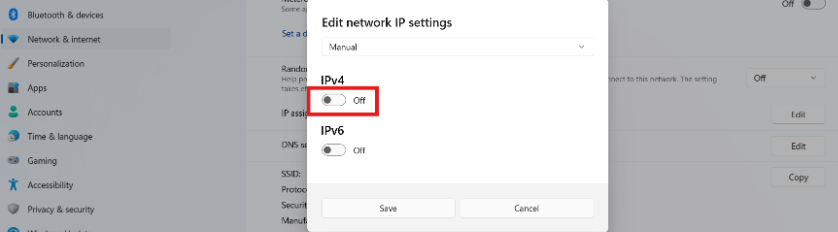
- Punch in the new DNS servers. Preferred: 1.1.1.1, Alternate: 8.8.8.8.
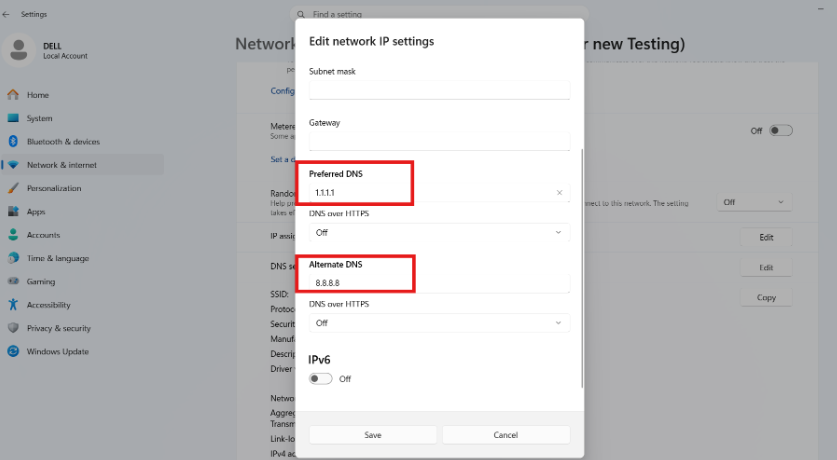
- Save the changes, then reconnect.
Why This Method Works
Because most machines default to whatever DNS their ISP hands them, and those servers usually aren’t built for speed, they get congested right along with everything else on that provider’s network during peak hours. Public options like Cloudflare and Google run on massive, well-placed infrastructure, so your request has a shorter trip and comes back almost instantly.
Method 2: PowerShell
Nobody’s got time to go device by device across a whole office or client site. This is where PowerShell earns its keep.
- Search for PowerShell, right-click, run as administrator.
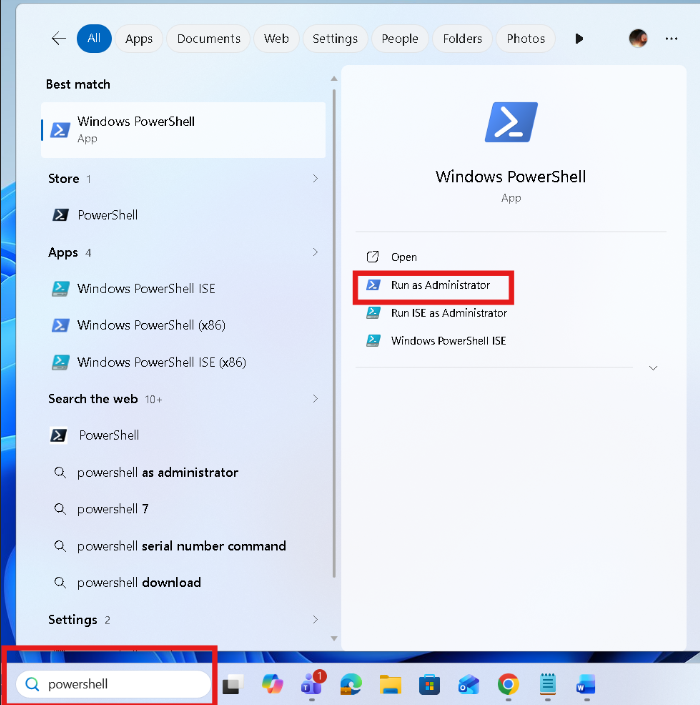
- Check what DNS servers the machine’s currently pointed at:
Get-DnsClientServerAddress. This is usually where the surprises show up. An old VPN resolver sitting first in line that shouldn’t even still be there, servers in an order that makes no sense.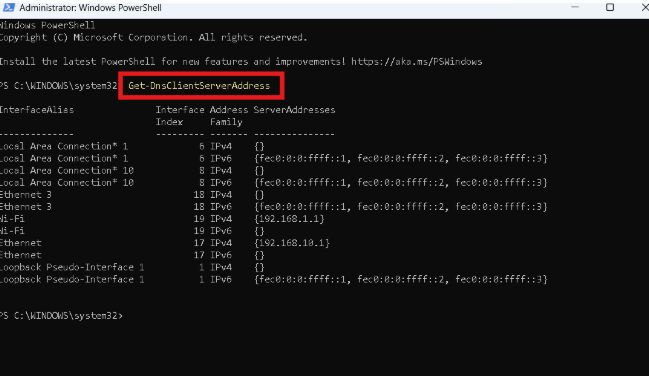
- Time an actual lookup: Measure how long a DNS lookup takes.
Measure-Command { Resolve-DnsName www.google.com }. Slow result here basically confirms it. It’s DNS, not the connection.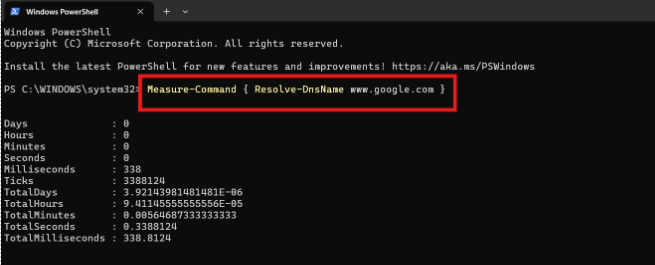
- Clear the stale cache:
Clear-DnsClientCache. Totally safe, for what it’s worth. Just old entries getting wiped, nothing else on the machine gets touched.
A Couple Advanced Things Worth Doing
Once the basics are sorted, there’s a bit more room to squeeze out performance if you want to go further.
Just Switch Providers
If your current DNS setup is slow, overloaded, or physically far away, moving to something else can make a noticeable difference.
- Google Public DNS runs 8.8.8.8 as primary and 8.8.4.4 as backup.
- Cloudflare runs 1.1.1.1 primary, 1.0.0.1 backup.
Reason this works: a lot of ISP DNS servers get bogged down under load, tacking on anywhere from 200 to 500 milliseconds per lookup. Public providers use anycast, meaning there’s likely a server physically near you no matter where you’re located, and that’s what makes it feel instant.
Want to confirm it’s actually working and not? Check timing before and after with nslookup in Command Prompt, dig if you’re on Linux or macOS, or the Timing tab in Browser DevTools under DNS lookup.
Get Caching And TTL Working Together
Caching decides how long a system remembers an address before it asks again. TTL sets the clock on that memory. Line these up right and you cut down on repeat lookups without breaking anything in the process.
Make sure caching’s actually on. On Windows this lives in the DNS Client service and normally just runs in the background, but it’s worth checking nothing, a script, an overly aggressive security tool, is clearing it more than it should.
Match your app-level caching to your system settings too. Browsers keep their own cache. So do a lot of Java apps and containerized environments. Older Java versions in particular used to hang onto DNS entries indefinitely unless someone went in and configured it otherwise. Line these up with your system TTL so things stay fresh without generating unnecessary repeat traffic.
If you run your own authoritative DNS, tune the TTLs deliberately. Longer TTLs, somewhere around 5 to 60 minutes, mean fewer repeat queries and less load overall. Shorter ones, 30 to 120 seconds, let you push updates or handle failovers fast without disrupting anyone mid-task.
Keeping This from Becoming a Recurring Problem
Fixing one slow machine takes ten minutes, maybe less once you’ve done it a few times. Keeping an entire network running smoothly week after week is a completely different job.
That’s the gap MSPDepot is meant to close. It brings remote monitoring, patch management, backup, ticketing, and security posture into one dashboard, so you’re not jumping between six different tools trying to figure out what’s actually wrong.
You see every endpoint in real time, which means catching a failing resolver before the “internet’s slow” tickets start piling up, and pushing a fix across the whole fleet in a few clicks instead of running from desk to desk.
Frequently Asked Questions (FAQs)
Does Clearing My DNS Cache Delete My Browser History?
No. Not even close, actually. It only clears out stored website address records. Your browsing history, saved passwords, files, none of that gets touched.
Why Is My ISP’s DNS Usually Slower Than Public Options?
Mostly just volume. ISP servers are handling a massive number of users at once, so congestion during busy hours is pretty normal. Providers like Cloudflare and Google build their networks around speed specifically, so they don’t run into the same bottlenecks.
How Often Should I Flush My DNS Cache?
No strict schedule here. Do it when lookups start feeling slow, right after switching DNS providers, or while troubleshooting a specific issue. Outside of that, it really doesn’t need much attention.
Can A Slow DNS Lookup Actually Be A Security Issue?
Sometimes, yeah. Malware can hijack DNS settings and reroute traffic through servers it controls, and that can feel exactly like a normal slowdown on the surface. Worth ruling out before assuming it’s just a performance thing.
What’s The Actual Difference Between Caching And TTL?
Caching is the storage side, keeping a lookup result around so it doesn’t need to be requested again right away. TTL is the timer on that stored result, the thing deciding how long it stays valid before it needs refreshing.
Google DNS Or Cloudflare, Which One’s Actually Better?
Both are solid, fast, and free, honestly. Cloudflare tends to get more credit for privacy and raw speed. Google’s been around longer and has pretty broad compatibility. Best answer is just to test both on your own network and see what actually performs better for you.