
How to Disable Windows Updates in Windows 10 & 11: 6 Safe Methods
Windows Update keeps your system secure and current. But sometimes, it becomes a real headache. Updates can install at the worst possible moment. They can slow down your computer during important work.
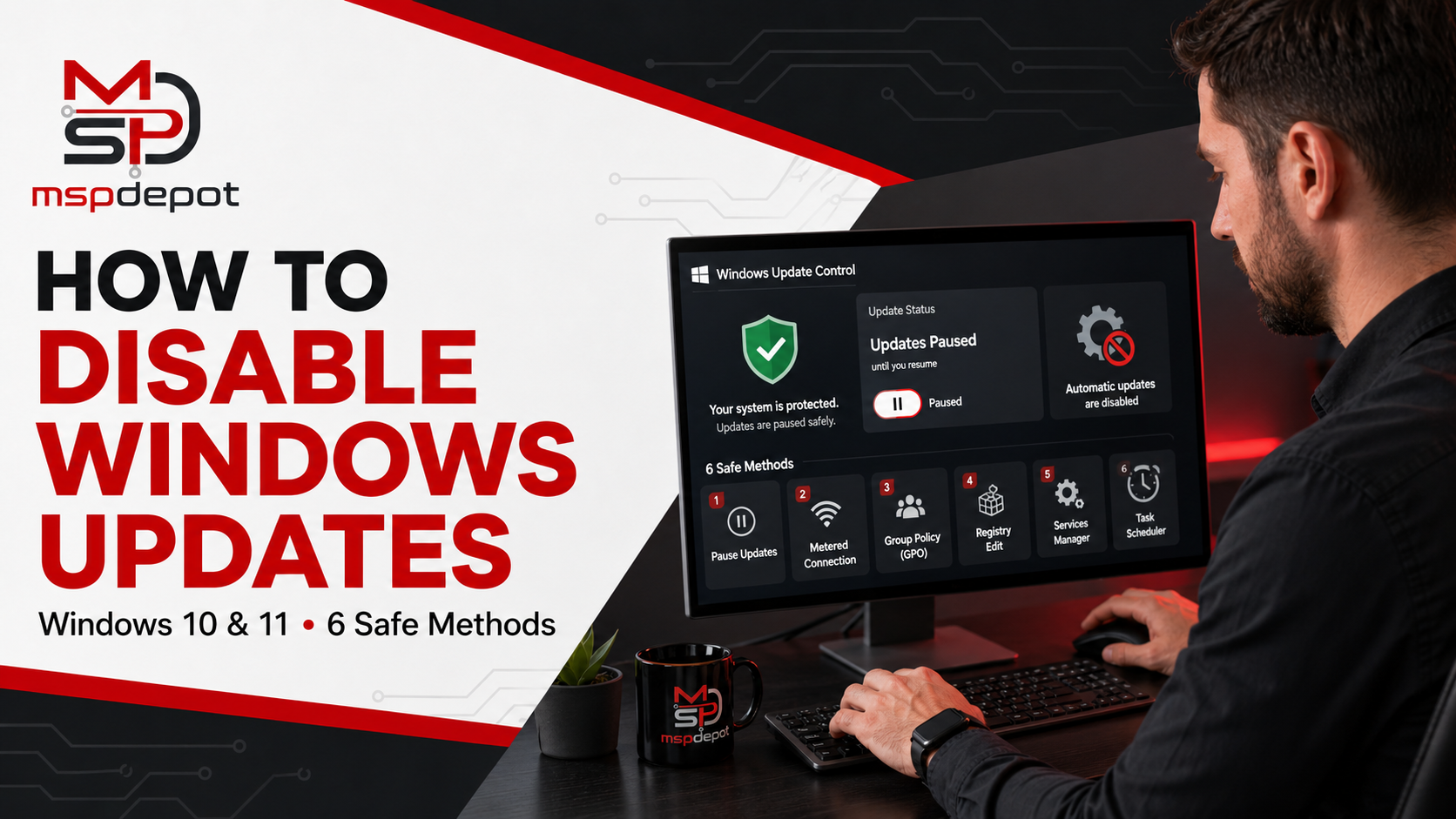
Many users search for how to stop Windows Update because of these frustrations. This guide explains six reliable methods to pause or disable updates. Each method suits different needs and technical comfort levels.
Why Do People Want to Stop Windows Update
Windows Update runs automatically by default. This design helps most users stay protected. However, it creates problems for certain situations. Gamers dislike sudden restarts during long sessions.
Professionals need stable systems during presentations or deadlines. Some older computers struggle with large update files. Limited internet connections make automatic downloads frustrating too.
Understanding these reasons helps you choose the right method. Not every solution fits every user. Some methods pause updates temporarily. Others disable the service completely. Choose based on your specific needs.
Risks of Disabling Updates Permanently
Before we continue, a quick warning is necessary. Disabling updates permanently carries real risks. Your system misses important security patches. Hackers often target unpatched vulnerabilities first. We recommend pausing updates instead of full disabling. Only disable completely if you understand the risks. Always turn updates back on periodically for safety checks.
Method 1: Pause Updates Through Settings
This is the simplest and safest method. It works on both Windows 10 and 11. Anyone can do this without technical knowledge.
Steps to Pause Updates
- Open the Settings app on your computer.
- Click on “Windows Update” from the left menu.
- You will see a “Pause updates” option.
- Select your preferred pause duration from the dropdown.
- Windows allows pausing for up to five weeks.
- After this period, updates resume automatically.
This method works well for short-term needs. It does not require technical skills. However, it only offers temporary relief. Updates will eventually download and install again.
Method 2: Set Your Connection as Metered
Windows treats metered connections differently than regular ones. This trick limits update downloads effectively.
How Metered Connections Work
Go to Settings, then Network and Internet. Click on your current Wi-Fi network. Toggle on the “Metered connection” option. Windows now assumes you have limited data. Most updates will not download automatically. Some critical security updates may still arrive.
This method works best for wireless connections. Ethernet connections do not offer this same setting easily. It suits users on limited internet plans. It also helps travelers using mobile hotspots.
Limitations of This Method
Metered connections do not block all updates. Critical security patches often bypass this restriction. Consider this a partial solution only. Combine it with other methods for better control.
Method 3: Disable Windows Update Service
This method offers stronger control over updates. It requires accessing the Services application.
Accessing the Services Panel
- Press Windows key and R together.
- Type “services.msc” and press Enter.
- Scroll down to find “Windows Update” in the list.
- Right-click on the service name.
- Select “Properties” from the context menu.
Changing the Startup Type
- A new window will open showing service details.
- Find the “Startup type” dropdown menu.
- Change it from “Automatic” to “Disabled.”
- Click “Stop” if the service is running. Press “Apply” and then “OK” to confirm.
This method effectively stops all automatic updates. The service will not start on its own. You can manually enable it later if needed. This approach works well for advanced users.
Re-enabling the Service Later
You may need updates again eventually.
- Return to the same Services panel.
- Change “Startup type” back to “Automatic.”
- Click “Start” to activate the service immediately.
- This restores normal update functionality completely.
Method 4: Use Group Policy Editor
Group Policy Editor offers precise control over updates. This tool is available on Pro and Enterprise editions. Home edition users need a different method.
Opening Group Policy Editor
- Press Windows key and R together.
- Type “gpedit.msc” and press Enter.
- Navigate to Computer Configuration first.
- Then go to Administrative Templates folder.
- Click on Windows Components next.
Configuring Update Policies
- Find “Windows Update” in the component list.
- Double-click “Configure Automatic Updates” setting.
- Select “Disabled” from the available options.
- Click “Apply” to save your changes.
- Restart your computer for changes to take effect.
This method gives detailed control over update behavior. You can customize various update-related settings here. It works well for business and IT environments. Home users with Pro edition can use it too.
Method 5: Edit the Windows Registry
Registry editing offers another way to disable updates. This method requires careful attention to detail. Mistakes here can cause system problems.
Backing Up Your Registry First
- Always back up your registry before editing.
- Press Windows key and R together.
- Type “regedit” and press Enter.
- Click “File” then “Export” to save a backup.
- Store this backup file somewhere safe.
Making the Registry Changes
- Navigate to this specific registry path carefully.
- Go to HKEY_LOCAL_MACHINE, then SOFTWARE folder.
- Continue to Policies, then Microsoft folder.
- Find or create a “Windows” key here.
- Inside, create a new key called “WindowsUpdate.”
- Right-click and select “New DWORD Value.”
- Name this value “DisableWindowsUpdateAccess.”
- Double-click the new value to edit it.
- Change the value data to “1.”
- Click “OK” and restart your computer.
This method works well for advanced users only. Beginners should avoid registry editing if possible. One wrong change can cause serious issues. Consider other methods first if you feel unsure.
Method 6: Use Third-Party Tools
Several trusted programs help manage Windows updates easily. These tools simplify the entire process significantly.
Popular Update Management Tools
Programs like “Windows Update Blocker” offer simple interfaces. Users can toggle updates on or off easily. “StopUpdates10” is another popular choice available. These tools automate the technical steps discussed above.
Choosing a Safe Third-Party Tool
- Research any tool before downloading it.
- Read reviews from trusted technology websites.
- Download only from official developer websites directly.
- Avoid random download sites with unclear origins.
- Scan downloaded files with antivirus software first.
Third-party tools simplify update management significantly. They combine registry edits and service changes together. This makes the process easier for average users. Always prioritize safety when choosing software tools.
Choosing the Right Method for You
Each method suits different user needs and skills. Beginners should start with the Settings app method. This offers safety and simplicity for everyone. Advanced users might prefer Group Policy Editor instead. IT professionals often use registry editing directly.
Consider your comfort level with technical tasks first. Think about how long you need updates paused. Temporary needs suit the settings pause option well. Permanent changes require more advanced methods discussed above.
A Balanced Approach to Updates
We recommend a balanced approach overall. Do not disable updates permanently without good reason. Security patches protect your system from real threats. Consider pausing updates instead of full disabling.
Check for updates manually every few months. This keeps your system reasonably current and safe. You maintain control without sacrificing security completely. This balance works well for most users.
Common Mistakes to Avoid
Many users make errors when disabling updates. Avoid these common mistakes for better results.
- Do not skip registry backups before editing. Backups save you from potential disasters later.
- Do not download tools from unknown websites. Malware often hides in fake update blockers.
- Do not forget to restart after changes. Some settings require a restart to work properly.
- Do not disable updates on business computers carelessly. Consult your IT department before making changes.
- Do not ignore critical security update notifications completely. Some updates protect against active security threats.
Final Thoughts
Learning how to stop Windows Update gives you more control. Six methods exist for different situations and skill levels. The Settings app works best for quick, temporary pauses. Registry editing and Group Policy suit advanced users better. Third-party tools simplify the process for everyone else.
Remember to balance control with security needs carefully. Complete disabling carries real risks worth considering. Choose the method that fits your specific situation. If you need to know about more, visit MSPdepot.
Frequently Asked Questions
Is it safe to disable Windows Update permanently?
Permanent disabling is not recommended for most users. Your system misses important security patches over time. This leaves your computer vulnerable to attacks. Pausing updates temporarily is a safer choice.
Will disabling updates affect my computer’s performance?
Disabling updates can actually improve short-term performance. Update downloads use bandwidth and system resources. However, missing updates may cause compatibility issues later. Some apps require the latest Windows features.
Can I stop updates on Windows 10 Home edition?
Yes, several methods work on Home edition too. Settings pause, metered connections, and registry editing all work. Group Policy Editor requires Pro or Enterprise edition though. Home users should use the other methods instead.
How long can I pause Windows updates?
Windows allows pausing updates for up to five weeks. After this period, updates resume automatically without asking. You must manually pause again if needed further.
What happens if I disable the Windows Update service?
Disabling the service stops all automatic update checks. Your computer will not download or install updates. You can still check manually if desired. Re-enable the service anytime to restore normal function.
Are third-party update blocker tools safe to use?
Many third-party tools are safe when downloaded correctly. Always choose reputable tools with good reviews. Download only from official developer websites directly. Scan files with antivirus software before installing them.
Will disabling updates cause my apps to stop working?
Some apps may eventually require newer Windows features. Older Windows versions might not support new app updates. This risk increases the longer updates stay disabled. Regular manual checks help avoid this problem.
Can I re-enable updates after disabling them?
Yes, every method described here can be reversed. Simply follow the same steps in reverse order. Change settings back to their original values. Your system will resume normal update behavior immediately.